
Workstation Setup Tips
Workstation Setup Resources
Workstation Components and Setup Tips
Chair
A properly adjusted chair should support the body while allowing you to work comfortably and change positions throughout the day. Sit fully back in the chair and adjust it in the following order:
- Seat height – Adjust the chair so your feet are supported by the floor or a footrest. Your thighs should be approximately parallel to the floor, with your knees near the same height as your hips.
- Seat depth – Leave a small space, approximately two to four finger-widths, between the front edge of the seat and the back of your knees.
- Backrest – Position the backrest so it supports the natural curve of your lower back. Adjust the recline tension, if available, so you can lean back comfortably without feeling pushed forward.
- Armrests – Adjust the armrests to lightly support your forearms while allowing your shoulders to remain relaxed. Armrests should not prevent you from sitting close to the desk. If the armrests do not adjust to support you properly, lower or remove them completely.
- Working position – Allow your upper arms to rest naturally near your sides, with your elbows bent approximately 90 to 110 degrees. The desk, keyboard, and mouse may also need to be adjusted to match this position.

Even a well-adjusted chair should not be used in one position throughout the day. Change positions regularly, recline periodically, and stand or move when possible.
Desk/Table
The desk or table should allow the keyboard and mouse to be positioned at a comfortable working height while providing enough space for your legs and frequently used equipment.
- Working height – Position the keyboard and mouse at or slightly below resting elbow height. Keep your shoulders relaxed, your elbows close to your sides, and your forearms approximately parallel to the floor. Elbows should be in ~90-110 degree angles.
- Seated work – Adjust the chair first to support your body. Then adjust the desk to match your resting elbow height. If the desk is too high and cannot be lowered, raise the chair and use a footrest to support your feet. A keyboard tray may also help provide a lower working surface.
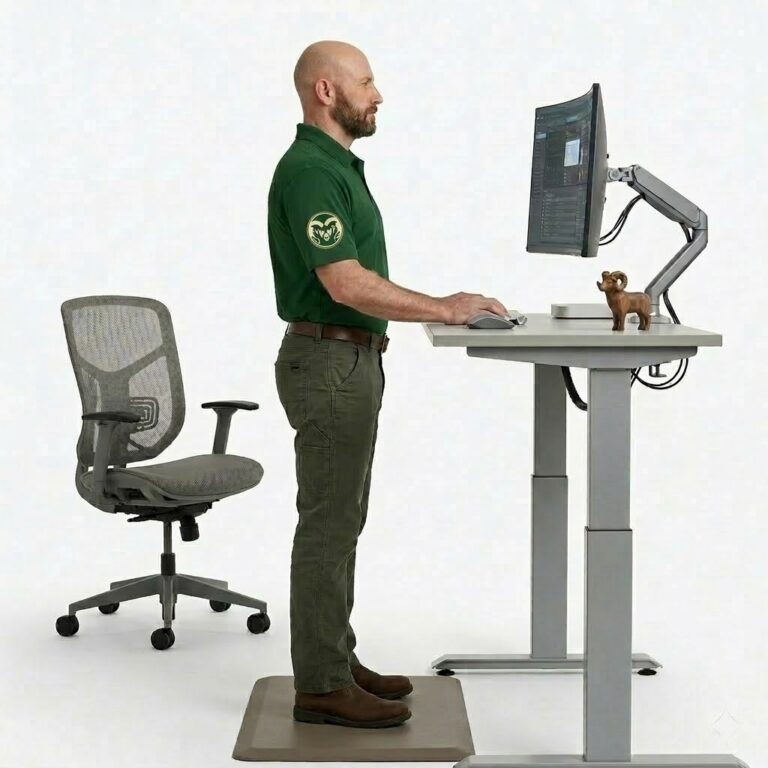
- Standing work – Adjust the desk so the keyboard and mouse remain near resting elbow height. Stand with your head over your shoulders and your weight comfortably distributed. Avoid leaning on the desk or locking your knees.
- Leg clearance – Keep the area beneath the desk clear so you can sit close to the workstation and change leg positions comfortably.
- Frequently used items – Place the keyboard, mouse, phone, and other frequently used items within easy reach. Less frequently used materials can be placed farther away.
A height-adjustable desk can support changes between sitting and standing, but standing should not replace sitting throughout the entire day. Alternate positions based on comfort and the work being performed.

Keyboard and Mouse
Position the keyboard and mouse so they can be used comfortably without reaching forward or away from the body.
- Placement – Place the keyboard directly in front of you and close enough that your upper arms remain near your sides. Position the mouse immediately beside the keyboard and at the same height.
- Elbow position – Keep your shoulders relaxed and your elbows close to your sides, bent approximately 90 to 110 degrees.
- Wrist position – Keep your wrists straight and generally in line with your forearms. Avoid bending the wrists upward, downward, or toward either side while typing or using the mouse.
- Keyboard angle – Keep the keyboard flat or slightly tilted away from you. Avoid raising the rear keyboard feet if this causes your wrists to bend upward.
- Mouse use – Select a mouse that fits your hand and can be operated with a relaxed grip. Move the mouse primarily from the arm and shoulder rather than repeatedly bending the wrist.
- Wrist rests – Use a palm rest to support the base of your palms during pauses from typing. Avoid resting your wrists or palms heavily on the desk or palm rest while actively typing. Most ergonomic keyboards have wrist rests already built-in.


Monitor(s)
Position the monitor to support a comfortable, upright head and neck posture while keeping the screen easy to see.
- Height – Position the top of the screen at or slightly below eye level. If you wear bifocals or progressive lenses, a lower monitor position may be more comfortable.
- Distance – Place the monitor approximately an arm’s length away, then adjust the distance as needed to view the screen clearly without leaning forward.
- Screen angle – Tilt the monitor slightly, if needed, so the screen is easy to view while keeping your head and neck in a comfortable position.

- Text size – Increase the display scaling, zoom, or font size so you can read comfortably without squinting or moving closer to the screen. Scaling of 125 to 150 percent or more may be appropriate.
- Single monitor – Position the monitor directly in front of you.
- Dual monitors – If both monitors are used equally, place them close together and center yourself where the screens meet. If one monitor is used more frequently, position that monitor directly in front of you and place the secondary monitor beside it. Make sure the monitors are close together (touching) and have no space in between.
- Glare – Position the screen to minimize glare and reflections from windows and overhead lighting.

Document Holders
Use a document holder when regularly viewing paper documents while typing or entering information. Proper placement can reduce repeated downward viewing and excessive head and neck movement.
- Placement – Position the document holder as close to the monitor as possible and at approximately the same viewing distance.
- Between the keyboard and monitor – For frequent typing from documents, place a low-profile document holder between the keyboard and monitor when space allows. This position keeps documents near the monitor’s viewing distance, minimizes side-to-side head movement, and allows you to make quick notes or highlights with only a slight reach, without excessive reaching or leaning forward.
- Beside the monitor – If the holder must be placed beside the monitor, keep it close to the screen and position it on the side that is most comfortable and practical for the task.
- Viewing angle – Angle the document toward you so the content can be read without leaning forward or bending your neck excessively.
- Frequently referenced documents – Place the document directly in front of you when it is viewed more often than the monitor.


Phones, Laptops, and Tablets
Avoid holding a phone between your shoulder and ear. Use a headset or speakerphone for longer or frequent calls, and keep frequently used devices within comfortable reach. When using a smartphone or tablet, raise and support the device when possible to reduce prolonged downward viewing.
Laptops and tablets are designed for portability, but their attached screens and keyboards can make neutral positioning difficult. For extended use, place the screen on a stand or other stable support and use an external keyboard and mouse. When used with a desktop workstation, position the device close to the primary monitor to limit reaching and repeated head movement.
Change Positions and Move
A well-adjusted workstation supports comfortable postures, but no single posture should be maintained throughout the day. Change positions regularly by sitting back, reclining, standing, or adjusting your working position. Take brief opportunities to stand, walk, or stretch, and vary tasks when possible. If you use a height-adjustable desk, alternate between sitting and standing based on your comfort rather than remaining in either position for an extended period.
Summary
A well-designed workstation should fit the user and support the work being performed. Begin by adjusting the chair, then arrange the desk, keyboard, mouse, monitors, and other equipment around a comfortable working position. Keep frequently used items within easy reach, support neutral postures, and change positions regularly throughout the day.
If discomfort continues or you need assistance adjusting your workstation, schedule an ergonomic evaluation through the CSU Ergonomics Program.
Contact CSU Ergonomics
(970) 491-2724